How to Clean Up Your Google Drive with Claude
Turn a messy Google Drive folder into a clean structure with clear file names in minutes, using Claude in Chrome and 2 copy-paste prompts.
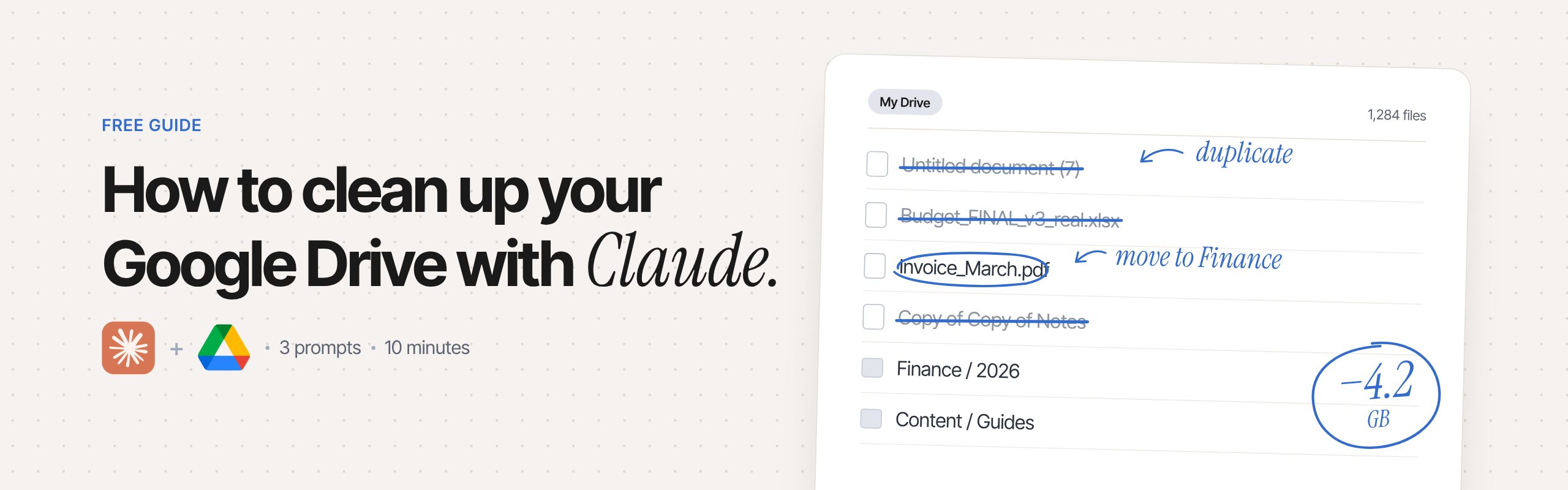
Claude can read your Drive files and sort them into folders. It also renames them for you.
Free, in my newsletter The AI Path.
Install Claude in Chrome
Go to the Chrome Web Store, search "Claude in Chrome" and click "Add to Chrome".
Open the messy folder
Open Google Drive and go into the folder you want to clean up.
Open Claude
Click the Claude icon in Chrome to open the side panel.
Ask for a plan first
Paste this prompt:
Review this folder and suggest a clear folder structure based on what my files actually contain. Group by project, year and document type. Flag possible duplicates and anything you can't identify.Claude only shows you a plan. It won't move anything yet.
Check the plan and apply it
Read the plan. If you like it, type:
Apply itClaude creates the folders and moves everything for you. Files it can't identify go into a "_To review" folder. Empty old folders are left for you to delete.
Rename the messy files (the trick)
Stay in the same chat and paste:
Rename the files with unclear names based on their content, using this format: date - document type - project or person. Show me the old and new names before applying anything.Check the list, then tell it to apply.
Always ask for the plan first, and check duplicates yourself before you delete anything.