Remove All the Ads From Your TV With Claude
Clean the ads off your Android TV with Claude Code and a free repo. Backup first, new home screen, and every change undone in one script.
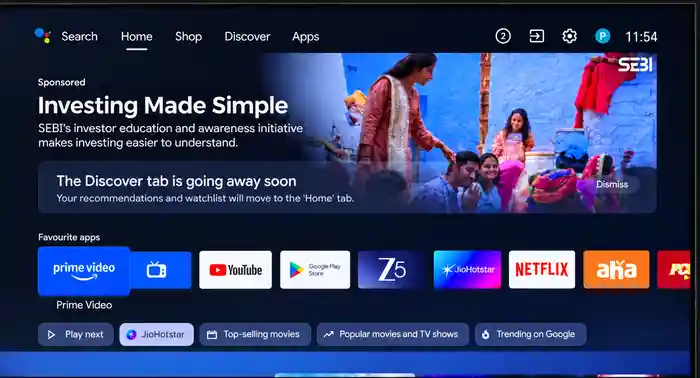
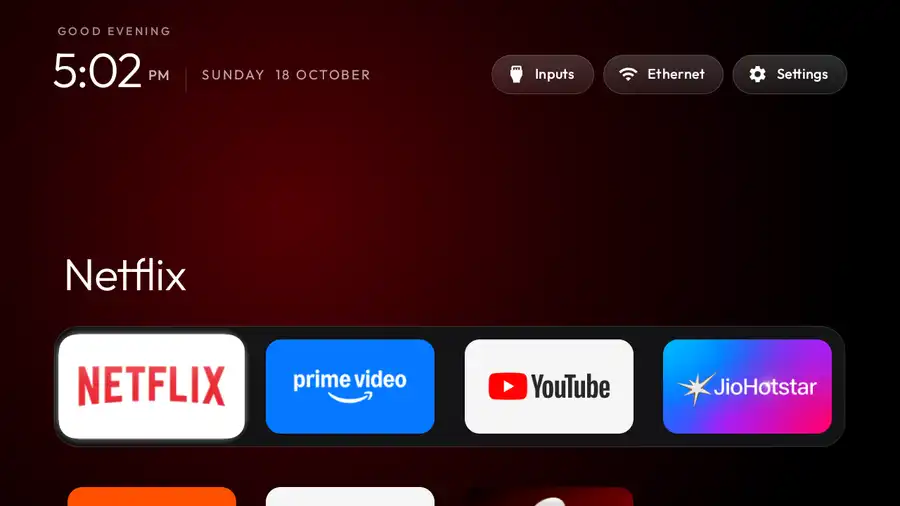
Your Android TV home screen is full of ads, "sponsored" rows and recommendations you never asked for. The open-source repo cleanyourtv lets Claude Code connect to your TV over Wi-Fi, disable all the ad and telemetry packages, and install a clean Apple TV-style home screen. Nothing is uninstalled, and every change can be undone with one script.
Free, in my newsletter The AI Path.
Check your TV works with this
This only works on Android TV and Google TV. That includes most Sony, TCL, Philips, Hisense, Xiaomi, Chromecast with Google TV, Nvidia Shield, OnePlus, Realme, Skyworth, Sharp, and many other brands. The repo supports 433 TV models across 114 brands.
How to check yours: go to Settings → Device Preferences → About (or Settings → System → About on Google TV). Look for "Android TV" or "Google TV" in the system info. If you see an Android version number (8.0 or higher), you are good.
Not Android? Samsung (Tizen), LG (webOS), Roku, Hisense VIDAA and Vizio SmartCast are not supported. Go to cleanyour.tv/not-android instead, which turns off tracking with your remote.
Fire TV: debloat works (disabling ads and telemetry), but Fire OS blocks third-party launchers. You get a cleaner Fire TV, not the Apple TV-style home screen.
What you need:
- A computer (Windows, Mac or Linux) on the same Wi-Fi network as the TV
- The Claude desktop app with Claude Code (included in all paid Claude plans, starting at Pro for $20/month)
- About 30 to 60 minutes
Turn on developer options and network debugging
You need to enable a hidden menu on the TV so Claude can connect to it over the network.
- On your TV, go to Settings → Device Preferences → About (on Google TV: Settings → System → About).
- Scroll down to Build and press OK on it 7 times. A toast message says "You are now a developer."
- Go back one screen. A new Developer options menu appears.
- Open Developer options and turn on USB debugging.
- If your TV shows Network debugging or ADB debugging, turn that on too.
- Some Google TV sets only show Wireless debugging instead. Turn that on. Claude handles both methods.
Find your TV's IP address
Go to Settings → Network & Internet (or Settings → Wi-Fi), select your connected network, and look for the IP address. It looks like 192.168.1.xxx. Write it down. Claude may ask for it.
Note: If anything is plugged into the TV's USB port (a speaker, a drive, a USB Ethernet adapter), know that some TVs cut power to that port while USB debugging is on. Plan to do the whole session in one sitting.
Open Claude Code and clone the repo
- Open the Claude desktop app.
- Switch to the Code tab at the top (this is Claude Code, built into the desktop app).
- Pick a folder to work in, or use the default.
- Type or paste the following command and press Enter:
git clone https://github.com/Gathin23/cleanyourtvWhat you'll see: Claude Code downloads the repo to your computer. This takes a few seconds. The repo contains the tools, scripts and TV-specific configurations that Claude uses.
What is cloning? It copies the project files from GitHub to your computer so Claude can use them locally.
Paste the prompt
Go to the repo's PROMPT.md file on GitHub, or open the PROMPT.md file in the cloned folder. Copy the entire prompt below and paste it into Claude Code.
Before you paste: replace <MODEL NAME HERE> with your actual TV model (for example: "Sony KD-55X85J" or "Xiaomi Mi TV 4A"). You can find your model in Settings → Device Preferences → About → Model.
I want to debloat my Android TV and replace its launcher with a clean Apple TV style home screen.
My TV model is: <MODEL NAME HERE>. Work on the real device, step by step, and verify everything you
do with screenshots pulled from the TV. Ask me before anything that depends on my preferences.
Where these steps name a file under `tools/`, `docs/` or `examples/` that is not in your working
folder, you are running without this repo: clone it first with
`git clone https://github.com/Gathin23/cleanyourtv` and work from there, so `tools/disable.sh` and the
rest keep their safety checks, rather than stopping or writing your own.

Connect
- Find the TV on my network (hostname, ARP table, or ask me for the IP) and connect over ADB on port 5555.
  If the TV is in another home, I'll give you its Tailscale address instead (docs/REMOTE.md): use that,
  don't scan my local network.
- If the stock adb binary fails with "No route to host" on macOS even though the port is open, that is
  macOS Local Network privacy blocking adb. Don't debug it: use the Python `adb-shell` package in a venv
  as the ADB client instead. If its file push hangs on larger files, transfer files as base64 chunks
  through the shell and verify the md5.
- If your own commands can't reach the TV at all while it answers from an ordinary terminal (a sandbox that
  blocks the local network), ask me to run `tools/relay.py <tv ip>` in a terminal and leave it running, then
  use `TV_HOST=127.0.0.1 TV_PORT=15555` (`tools/relay.md`).
- If port 5555 stays closed, the TV may only offer Wireless debugging (Google TV sets often do): look for
  `_adb-tls-connect._tcp` with `dns-sd -B` or `adb mdns services`, ask me for the code and port under
  Developer options > Wireless debugging > Pair device with pairing code, then `adb pair`, `adb connect`
  and `adb tcpip 5555`. Android switches Wireless debugging off whenever Wi-Fi drops.
  Some firmware runs network ADB on another fixed port instead (a projector used 5877): if 5555 refuses and
  nothing advertises Wireless debugging, scan the TV's own TCP ports and try each open one with `TV_PORT`.
- If the TV turns out not to be Android TV / Google TV (no ADB port at all, or it identifies as Tizen,
  webOS, Roku OS, VIDAA or SmartCast), stop and tell me to use https://cleanyour.tv/not-android, which
  turns off the tracking with the remote. Nothing in this repo applies to it.
- Tell me when the "Allow USB debugging?" prompt will appear on the TV so I can accept it.
- If `adb install` hangs on Android 14 it is waiting for an on-screen confirmation; push the APK and run
  `pm install -r` over the shell instead.

Back up first
- Save the full package list, disabled-package list, getprop output and all settings to a backup folder
  before changing anything, and write a restore script that re-enables everything you disable.
- Ask me what is plugged into the TV's USB ports, and ask separately whether the TV's network comes
  through a USB Ethernet adapter: "nothing plugged in" can be true while the network itself is on that
  port. Some devices cut their power while USB debugging is on, so warn me, and remind me to switch
  debugging off once you're done. On a set that reaches the network over USB Ethernet, check before you
  change anything: `dumpsys usb | grep host_connected` (`host_connected=false` is no proof the adapter
  is gone: some sets read false with it still up as `eth0`, so go by the next check) and
  `dumpsys connectivity | grep -o 'Transports: [A-Z]*'` (`WIFI` on a TV I call wired means the box
  fell back, and ADB is running over Wi-Fi). Finish the whole job in one sitting, not two: there the
  port only returns with USB debugging off, and that closes port 5555 as well. Prefer Wireless
  debugging if the TV has it.
- When you finish, close network ADB instead of leaving it open: switch Wireless debugging and
  Network/ADB debugging off on the TV (whichever it has), and USB debugging too unless I ask to keep
  it, and revoke the USB debugging authorisations. Wireless debugging has a port of its own and can
  stay open when USB debugging goes off: note that port from `adb mdns services`
  (`_adb-tls-connect._tcp`) before switching it off, and check it with
  `tools/adb-closed.py <tv ip> <port>` straight after, before the reboot, because it takes a new port
  each time it starts. Then reboot, check with `tools/adb-closed.py <tv ip>` that port 5555 refuses
  the connection, and confirm Wireless debugging is still off. If 5555 still answers while USB
  debugging stays on, that toggle is what keeps it open on this TV: switch it off too and check
  again. Only the tool saying the port is closed counts, not how the toggles look or a connection
  that dropped. If the TV's network came over a USB Ethernet adapter, unplug and replug the adapter
  once debugging is off - the port comes back with it - and have me confirm the TV is on Ethernet
  again, not Wi-Fi. Don't trust `nc` on macOS: Local Network privacy can block it too, and its "No
  route to host" proves nothing; only "Connection refused" does. Port 5555 is plaintext, and on
  firmware with `ro.adb.secure=0` (or with it unset, on a debug build or Android 4.4) any device on
  the LAN can get a shell.

Debloat
- List installed packages and sort them into: manufacturer telemetry/analytics, manufacturer content
  and ad services (PatchWall, recommendation rows, content providers), background services I probably
  don't need (share/cast duplicates, cleaners), preloaded apps, and streaming apps.
- Disable the first categories with `pm disable-user --user 0`, never uninstall system packages.
- Never disable what the TV needs to work: the TV app and input services that play HDMI and the
  tuner, the input/source menu, remote control and Bluetooth pairing services, the on-screen
  keyboard, Google Play Store and Play Services. Manufacturer package names often don't say what a
  package does: check its activities and services with `dumpsys package` first, and ask me if it's
  still unclear.
- Never disable Android's own core packages, or the TV may not boot again: the permission controller,
  the package installer, ext services and ext shared, module metadata (each as `com.android.*` or
  `com.google.android.*`, and ext services and ext shared also as the bare `android.ext.services` and
  `android.ext.shared`), `com.google.android.overlay.modules*`, `com.android.providers.*` (calendar,
  contacts, user dictionary and blocked numbers aside), `com.android.systemui`, `com.android.shell`,
  `com.android.phone`, `com.android.settings`, `com.android.tv.settings` and `android`, nor the TV
  middleware (`com.cltv.mal`, `com.mediatek.tis`, `com.mediatek.tv.service`, `com.mediatek.tv.agent`:
  a Haier set restarted in a loop with `com.cltv.mal` off,
  [#1578](https://github.com/Gathin23/cleanyourtv/issues/1578)). An original Mi TV Stick never booted again after a list took the first six
  ([#884](https://github.com/Gathin23/cleanyourtv/issues/884)); `tools/disable.sh` refuses such a list.
- Before touching streaming apps, voice assistant, Chromecast, Miracast or the update service, ask me
  which ones I use with a checklist question and disable only what I don't tick.
- Run `pm` commands one per shell call, chained commands may silently stop after the first.
- If `pm disable-user` is refused for every package, stop and tell me: some firmware (Fire OS 5 on a
  Fire TV Box, for one) refuses `pm disable-user` with a `SecurityException`, `pm uninstall --user 0`
  with `DELETE_FAILED_INTERNAL_ERROR`, and `pm hide` reports success while changing nothing. Check
  with `pm list packages -d` instead of the exit code, and don't burn the session retrying - there is
  nothing to debloat on such a set, so we fall back to its own privacy toggles and DNS blocking
  (`docs/TROUBLESHOOTING.md`).
- Don't launch a package whose name says factory, production, AT or fac menu (`com.cvte.tv.hkcfac`,
  `com.cvte.tv.fac.menu`, `com.at.factory.*`, `mediatek.factorymenu.ui` and the like) to see what it does, even read-only:
  on Haier/CVTE boards opening one flips a factory-mode flag that kills the Input key and CEC, and
  makes the next boot disable Play services, Netflix and Chromecast - which the shell then cannot
  re-enable. `dumpsys package <name>` tells you what a package is without starting it, and
  `docs/TROUBLESHOOTING.md` has the way out if one has been opened.
- Disable in small batches and screenshot between them: a batch can take something load-bearing with
  it and you cannot tell which.
- After the last batch, wait about 15 seconds before rebooting - Android writes package state to
  disk about ten seconds after a change (`WRITE_SETTINGS_DELAY`, `docs/TROUBLESHOOTING.md`), so a
  reboot sent straight after the batch boots with the old state and what came back reads as
  firmware re-enabling packages it never re-enabled. `adb shell sync` first is fine too. Then reboot
  once and compare `pm list packages -d` with what you disabled: some
  firmware re-enables packages at every boot from its own list (TCL Android 9 does this for its user
  center). Note those in the list header instead of disabling them again after each boot. If
  setupwraith or the stock launcher came back and Home is black, check `logcat | grep
  RecoveryActivity` and re-enable the stock launcher before anything else
  (`docs/devices/acer-r4g.md`).
- Offer me ad-blocking DNS as an optional extra: on Android 9 and newer, Private DNS set to an
  ad-blocking resolver (`settings put global private_dns_specifier dns.adguard-dns.com`, then
  `settings put global private_dns_mode hostname`). Tell me it doesn't block YouTube ads, check an app
  still plays afterwards, and note the undo (`private_dns_mode opportunistic`) in the README.
  Ask me first whether my router already filters or routes traffic by domain through its own DNS
  (Pi-hole, AdGuard Home, a VPN with domain lists, a fake-IP proxy): Private DNS goes around it, so those
  rules stop applying to the TV, and blocking on the router is the better choice there.

Launcher
- Check that the TV accepts APKs before building anything. Some China-market sets answer every
  sideload with `INSTALL_FAILED_VERIFICATION_FAILURE` — `adb install`, `pm install`, a hand-started
  installer and even the manufacturer's own APKs all fail — and others refuse any package that
  declares `android.intent.category.HOME` unless it carries the manufacturer's signature. If you
  hit either, do the debloat half, say plainly that the launcher half is impossible here, and stop
  retrying installs. The matching `examples/` header says which case your TV is.
- Check the TV's SDK level before promising the launcher, too: `tools/tv.py 'getprop
  ro.build.version.sdk'` against `grep minSdk launcher/app/build.gradle` (26 = Android 8.0). A set
  below it answers `INSTALL_FAILED_OLDER_SDK`; lowering `minSdk` is a source change you would then
  maintain yourself, and an APK rebuilt elsewhere is nothing this repo can verify. On those sets offer
  the debloat half and say the launcher cannot be installed. With no launcher to hand over to, the
  stock one stays: `cmd package` does not exist before Android 7, so `tools/disable.sh` asks `dumpsys
  activity` for Home there and warns when neither answers - that warning means nothing was checked,
  and a set with no recovery has no way back (#795).
- Don't install a third-party launcher that charges for basics like wallpapers. Build a small native
  Android TV launcher instead (Java, AndroidX RecyclerView, minSdk matching the TV, debug build is fine),
  install it over ADB, set it as the default home and disable the stock launcher. If several apps claim
  the HOME intent, list them with `cmd package query-activities -a android.intent.action.MAIN -c
  android.intent.category.HOME` and set the default with `cmd package set-home-activity`. Those two
  commands can both name your launcher while Home still opens something else: on some Google TV builds
  `set-home-activity` prints `Success` and changes nothing, and setupwraith's `.RecoveryActivity`
  keeps the key. Confirm with `dumpsys activity activities | grep mFocusedApp` before telling me the
  takeover worked.
- Before disabling the stock launcher, check which other apps claim HOME: on Google TV the setup wizard
  (`com.google.android.tungsten.setupwraith`) takes over even after the stock launcher is disabled, and
  the matching `examples/` header says what to do. Before disabling setupwraith, run
  `dumpsys wifi | grep -o 'cname=[^ ]*'`: a Wi-Fi network saved during first setup belongs to it, and
  Android deletes that network the moment it is disabled, which takes the TV off Wi-Fi and ADB. If it
  does, ask me to forget the network and re-join it in Settings first.
- On a CVTE board (any `com.cvte.*` package), leave its stock launcher (`com.cvte.tv.launcher.*`) enabled
  unless the `examples/` folder for that exact board disables it: make your launcher Home with
  `set-home-activity`, reboot once, and confirm Home and ADB come back before anything else. Don't enable a
  remote-key helper in the same pass. A JVC LT-43N7115 (`TP.SK706S.PC822`, Android 11) hung on its boot
  animation with ADB gone after both were done before one reboot (#741).
- On Google TV the stock launcher also answers the remote's app buttons (Netflix, YouTube and the like),
  Input and Settings/dashboard buttons, so after disabling it ask me to press each one, and remap any that
  do nothing with the launcher's key services: `input_key_keycodes` and `app_keys` with
  INPUT_KEY_SERVICE=1, `settings_key_keycodes` with HOME_KEY_SERVICE=1 (`config.xml` or the theme).
  Enabling either helper can cost more than the buttons it maps: on a TCL G09 build (Google TV 12) ask me
  to hold volume up before and after, because a bound key-filtering service there drops the key repeats -
  a ramping volume becomes one step per press, one helper or both, all or nothing - so say which one I am
  giving up instead of enabling it quietly (`docs/devices/tcl-55p71b-g09-key-repeat.md` has the bisect and
  the three ways out). On other sets this was not measured; if holding a button stops repeating once a
  helper is on, it is the same trade and not a broken remote.
  A button the TV logs as `KEY_UNKNOWN` or `KEY_PROGRAM` cannot be matched by keycode, since every
  unmapped button shares it: read the scancode with `getevent -lt` and use `settings_key_scancodes`,
  which only `config.xml` carries (a theme can set keycodes, not scancodes).
- After the first reboot with the new Home, check what the TV opens at power-on
  (`logcat -b events -d | grep wm_set_resumed_activity`). If the firmware puts the Live TV app on screen by
  itself, ask me which I want to land on, Home or Live TV: Home is `power_on_home` with HOME_KEY_SERVICE=1,
  Live TV is `boot_to_live_tv` (`config.xml` or the theme). Never set both.
- On Android 11 and newer the launcher must declare `<queries>` for `android.intent.category.LEANBACK_LAUNCHER`,
  or package visibility silently hides every app and the grid comes up empty; target a recent SDK, some
  Google TV 14 sets refuse older targets at install.
- If you write the launcher yourself, make its theme explicitly opaque (`windowIsTranslucent`,
  `windowIsFloating` and `windowSwipeToDismiss` false): on some firmware `Theme.DeviceDefault` comes out
  translucent, the TV app keeps running under Home, and after an HDMI input the picture stays on screen.
- Ask how many dock slots I want (4, 5, 6 or 7), which apps, and their order; keep four if I have no
  preference. The reference launcher already supports this: use `columns` and `dock_apps` in
  `launcher/app/src/main/res/values/config.xml` or a theme's `config.json`, without adding a new layout.
- Design, Apple TV 4K style: pitch black background; a dock row at the bottom of the screen inside a
  slightly lighter rounded band holding the apps I pick; the rest of the apps in a grid with the same
  number of columns below that scrolls up when I press Down; one translucent "glass" highlight
  that springs from tile to tile instead of per-tile borders; the focused tile scales up slightly and
  shows its name underneath; above the dock, the focused dock app's name in large light type with an
  ambient glow in a colour sampled from its banner; frosted pill buttons top right for Inputs, Wi-Fi
  (showing the network name) and Settings; a greeting, a large thin clock and the date top left in a
  downloaded open-licence typeface such as Outfit. Inputs opens a compact glass dropdown under the pill
  listing the HDMI ports, AV and Live TV, switching via the TV input framework.
- Make D-pad navigation deterministic: Up/Down move exactly one row, Up from the dock goes to the top
  bar, the ends of the top bar don't fall through to tiles. Remember the last focused tile.
- Keep it light: the TV has about 1 GB of RAM. No blur, no video, no network polling.

Verify
- After each change, inject remote key presses over ADB, take a screenshot from the TV and look at it:
  `tools/tv.py --screenshot shots/01-after.png DPAD_RIGHT` presses the key, then captures on the TV and
  pulls the PNG (leave the keys off to capture what is already on screen).
  Fix what you see before moving on.
- Live TV, HDMI and some streaming apps (Netflix) give empty screenshots (0 bytes); that is the TV, not a
  broken debloat, and `--screenshot` exits 1 with that message. Check
  `dumpsys activity activities | grep -i ResumedActivity` instead (some builds print no `topResumedActivity`
  line but do print `mResumedActivity`; see `docs/TROUBLESHOOTING.md`).
- If screenshots keep showing an app you already left, byte for byte, `screencap` is returning its last
  frame: confirm `mCurrentFocus` in `dumpsys window`, force-stop that app and capture again.
- If the screen looks enlarged and clipped after an install or a reboot, check the display overrides
  before editing the launcher grid: `wm size` and `wm density` show a physical value next to an
  override, and an override left over from an old resolution experiment, or a density that comes back
  wrong on some MediaTek Sony firmware, is not a launcher bug. An empty
  `settings get secure display_density_forced` is a normal default, not damage - read all three
  values first and put them back if you undo (`docs/TROUBLESHOOTING.md`).
- If a remote button relies on an accessibility helper, check that the service is enabled and bound
  for the current user, then ask me to press the real button; an injected key is not proof (see
  `docs/TROUBLESHOOTING.md`).
- When done, give me a restore script, a build-and-install script, and a README that explains how to
  re-enable any app and how to change the dock order or the wallpaper.

---

Expect to answer three or four checklist questions (which apps you use, the dock size and app order,
whether to keep the voice assistant, Chromecast and firmware updates). Everything is reversible.
The prompt is long because it contains safety rules: Claude must back everything up first, never uninstall system packages (only disable them), ask before touching your streaming apps, and close network debugging when it is done. These rules are the point.
Accept the pop-up and answer Claude's questions
After you paste the prompt, Claude connects to your TV over the network.
- A pop-up appears on your TV screen: "Allow USB debugging?" with your computer's fingerprint. Select Always allow from this computer and press OK.
- Claude backs up your current package list, disabled packages, system properties and settings to a local folder, and writes a restore script.
- Claude asks you a few questions. Answer honestly:
- What is plugged into the TV's USB ports?
- Does the TV use a USB Ethernet adapter for its network connection?
- Which streaming apps do you use? (Netflix, YouTube, Prime Video, etc.) Tick the ones you want to keep. Claude only disables what you do not tick.
- How many dock slots do you want (4, 5, 6 or 7) and which apps, in what order?
- Do you want to keep the voice assistant, Chromecast, and firmware updates?
- Do you want ad-blocking DNS? (This blocks ads in apps and on the home screen, but does not block YouTube ads.)
What you'll see: Claude works through the process step by step, taking screenshots from the TV after each change to verify everything looks right. It disables packages in small batches and checks between each one.
What Claude changes
Here is what happens on your TV:
- Disables ad and telemetry packages (manufacturer analytics, recommendation rows, content providers, ad services). These are disabled with
pm disable-user, never uninstalled. - Disables background services you do not need (share/cast duplicates, cleaners, preloaded apps you did not tick).
- Installs a clean home screen, a small native launcher (~572 KB) with a pitch-black background, a dock row with your chosen apps, a grid of remaining apps, frosted pill buttons for Inputs, Wi-Fi and Settings, and a clock with the date.
- Sets the new launcher as default Home and disables the stock launcher.
- Optionally sets ad-blocking DNS (Private DNS to an ad-blocking resolver like AdGuard DNS).
- Verifies every change with screenshots pulled from the TV.
- Closes network debugging when done (USB debugging, Wireless debugging, and ADB debugging are all switched off, and authorisations are revoked).
Undo anything
Everything Claude does can be reversed.
Restore everything at once:
tools/restore.sh examples/<your-tv>/debloat.txtThis re-enables every package that was disabled. The stock home screen comes back.
Re-enable a single app:
adb shell pm enable --user 0 com.example.package.nameGet the old home screen back: go to Settings → Apps, find the stock launcher, and enable it. Then go to Settings → Device Preferences → Home screen and select it. The cleanyourtv launcher stays installed (you can remove it from Settings → Apps if you want).
Factory reset: if nothing else works, the recovery menu factory reset always works as a last resort.
Troubleshooting
Claude can't find my TV
Make sure both devices are on the same Wi-Fi network (not a guest network). Check that USB debugging is on. On macOS, the Local Network privacy setting can block ADB connections. Go to System Settings → Privacy & Security → Local Network and allow your terminal app.
Port 5555 is closed
Your TV may only offer Wireless debugging (common on Google TV). Claude handles this automatically by looking for the Wireless debugging service and pairing with a code. Some firmware uses a different port entirely. Claude scans for it.
The "Allow USB debugging?" pop-up never showed up
Go back to Developer options and make sure USB debugging is actually on. Try toggling it off and on. If the TV is in standby, wake it up first. On some sets you need to reboot after enabling developer options.
The new launcher won't install
Some China-market sets refuse all sideloaded APKs (INSTALL_FAILED_VERIFICATION_FAILURE). Others block any app that declares HOME intent without the manufacturer's signature. On these TVs, the debloat half still works (fewer ads) but the new home screen cannot be installed. Claude tells you when this happens.
A remote button stopped working
Some buttons (Netflix, YouTube, Input, Settings) are handled by the stock launcher. After replacing it, the new launcher's key service remaps them. If a button does nothing, Claude configures the key mapping. Press the button and tell Claude what happened.
Does it block YouTube ads?
No. Ad-blocking DNS blocks ads served from separate ad domains, but YouTube serves its ads from the same domain as its videos. DNS blocking cannot tell them apart. This is a limitation of DNS-level blocking, not of this tool.
Is it safe? Can it brick my TV?
Packages are disabled in user profile only, never deleted. The TV's system partition is not touched. A factory reset from the recovery menu undoes everything. The repo has safety checks that refuse to disable core system packages. That said, it is your TV and your responsibility. Read the prompt's safety rules before you start.
Claude can't take a screenshot (0 bytes)
Live TV, HDMI input and some streaming apps (Netflix) give empty screenshots. This is the TV's own DRM, not a broken debloat. Claude falls back to checking the activity log instead.
Mistakes to avoid
- Leaving debugging on afterwards. Network debugging (port 5555) gives full control of the TV to anyone on your network. Claude closes it at the end, but double-check in Developer options.
- Disabling things by hand. The prompt's safety rules exist for a reason. If you disable packages manually without the repo's checks, you risk taking out something the TV needs to boot.
- Rebooting mid-batch. Android writes package state to disk about 10 seconds after a change. If you reboot immediately, the changes may not stick. Let Claude handle the timing.
- Skipping the backup. Claude creates a backup and a restore script before changing anything. If you skip this step or delete those files, you lose the ability to undo cleanly.
- Expecting it to block YouTube ads. Ad-blocking DNS is optional and does not block YouTube ads. Nothing in this repo does.
I cover practical AI workflows like this every week in The AI Path, my newsletter for data and AI professionals. Subscribe here.
Project: github.com/Gathin23/cleanyourtv · MIT license